
How often have you encountered the scenario where you search something and suddenly everywhere you go, you start seeing ads for it. Or, when you try to read a news article and you can barely read anything with all the ads showing up.
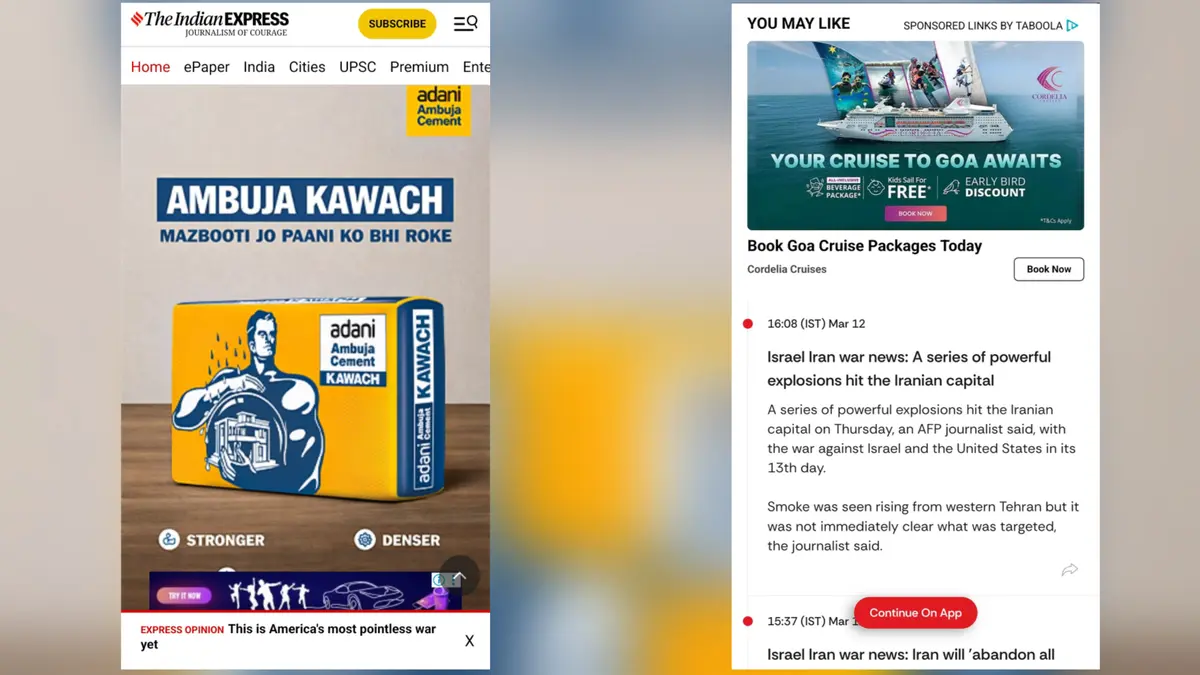
Although you might use apps like Firefox or extensions such as Adblock, they must be installed on every device, which is often impractical.
I faced a similar issue because my family, like many others, isn’t tech-savvy. I needed a solution that could be implemented to shield them from ads and malware without requiring any changes on their part.
Enter, AdGuard Home
AdGuard Home is an open-source, network-wide DNS server that blocks ads, telemetry, and tracking domains before they ever reach your smartphones, laptops, smart TVs, or IoT devices.
In this guide, we’ll cover how to install AdGuard Home, configure the best 2026 blocklists, optimize upstream DNS settings, and deploy it across your entire home network.
Installation
Head over to the AdGuard Home Automated Install. Installing AdGuard is as simple as running a single command.
To install with curl run the following command:
curl -s -S -L https://raw.githubusercontent.com/AdguardTeam/AdGuardHome/master/scripts/install.sh | sh -s -- -vTo install with wget run the following command:
wget --no-verbose -O - https://raw.githubusercontent.com/AdguardTeam/AdGuardHome/master/scripts/install.sh | sh -s -- -vThis installs the AdGuard Home service, which will act as your local recursive/forwarding DNS server.
What is DNS?
DNS stands for Domain Name System. In simple terms, it is the internet’s address book. Every website you visit has an underlying IP address (e.g. 66.11.184.216). When your browser asks for google.com, DNS translates that human-friendly name into the server’s IP address. By acting as your DNS server, AdGuard Home inspects domain requests and instantly drops requests to known advertising, tracker, and phishing domains.
Setting Up AdGuard Home & Web Interface
After installation, the setup wizard starts on port 3000. Open your browser and navigate to http://<your-server-ip>:3000.
Step 1: Click Get Started.
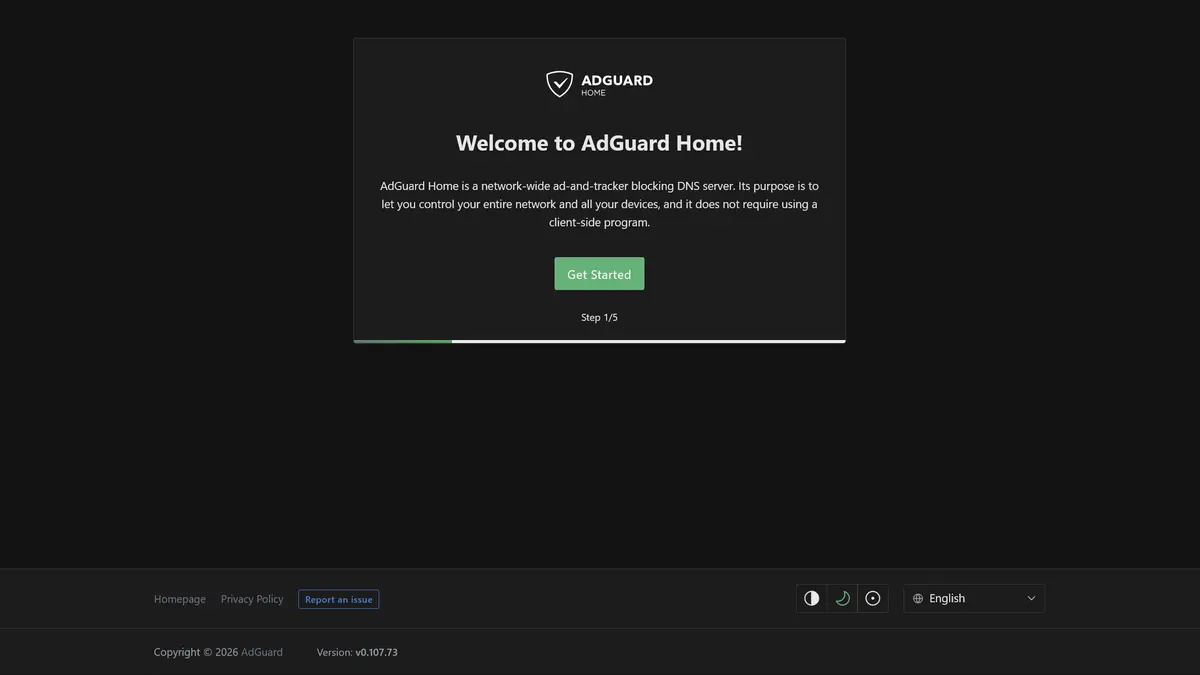
Step 2: Configure Admin Web Interface & DNS Port.
- By default, the admin web UI listens on port
80. If you already run a web server (like Nginx or Traefik), change the admin port to3000or8080. - Keep the DNS server port on
53(standard DNS port).
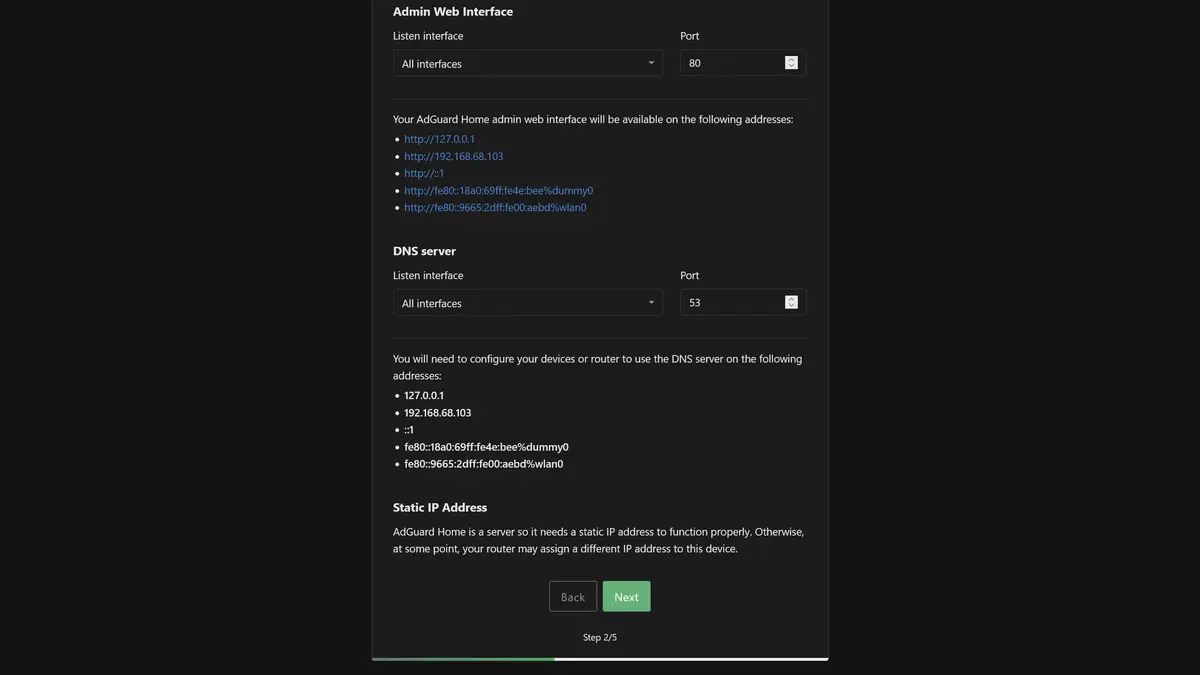
Step 3: Set your admin username and password.
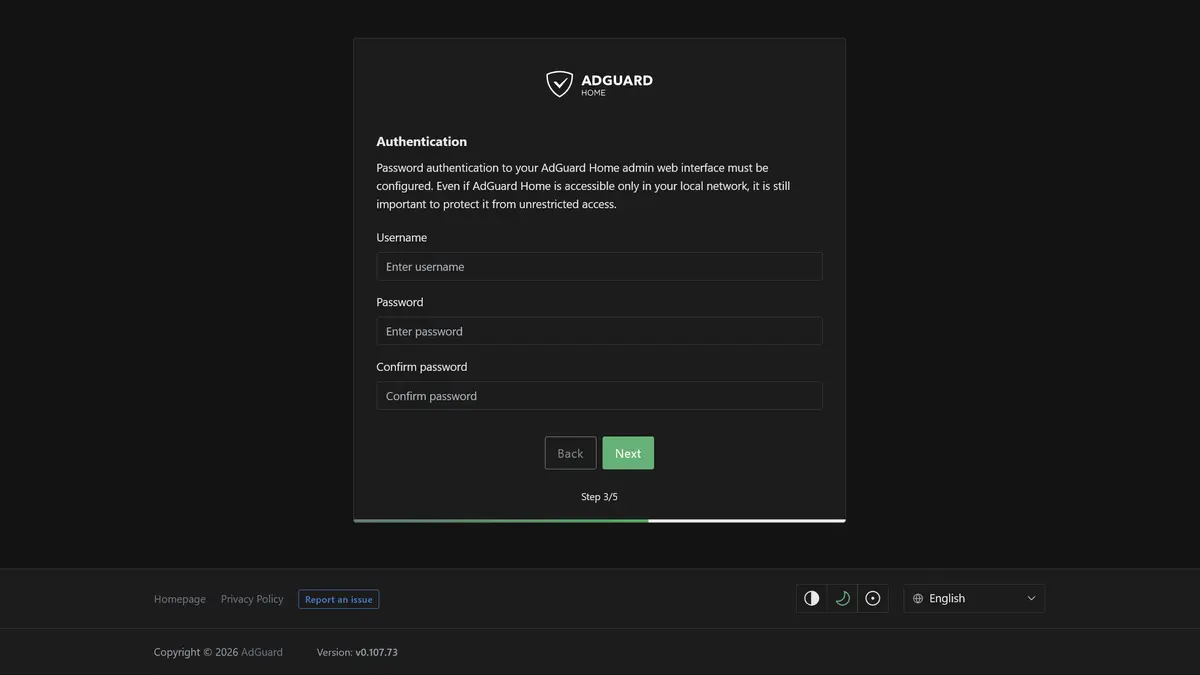
Once the wizard completes, log into the dashboard at http://<your-server-ip>:3000.
Best AdGuard Home Blocklists (2026 Recommended)
To add blocklists, go to Filters → DNS blocklists → Add blocklist → Add a custom list in your AdGuard Home dashboard.
Here is our curated, tested stack of blocklists that provides maximum protection with zero false positives (safe for family use without breaking online banking or streaming):
| Blocklist Name | Focus Category | Recommended Source URL | Best For |
|---|---|---|---|
| AdGuard DNS Filter | Ads & Trackers | https://adguardteam.github.io/HostlistsRegistry/assets/filter_1.txt | Core ad blocking |
| OISD Basic / Big | Universal Ad & Telemetry | https://big.oisd.nl | Zero false positives (Family-safe) |
| Peter Lowe’s List | Ad & Tracking Servers | https://pgl.yoyo.org/adservers/serverlist.php?hostformat=adblockplus&showintro=0&mimetype=plaintext | High performance & lightweight |
| Steven Black Unified Hosts | Malware + Adware | https://raw.githubusercontent.com/StevenBlack/hosts/master/hosts | Malicious domain protection |
| Phishing URL Blocklist | Phishing & Scams | https://adguardteam.github.io/HostlistsRegistry/assets/filter_30.txt | Security & Anti-Phishing |
| AdGuard Popup Hosts | Annoying Popups | https://adguardteam.github.io/HostlistsRegistry/assets/filter_11.txt | Notification & popup spam |
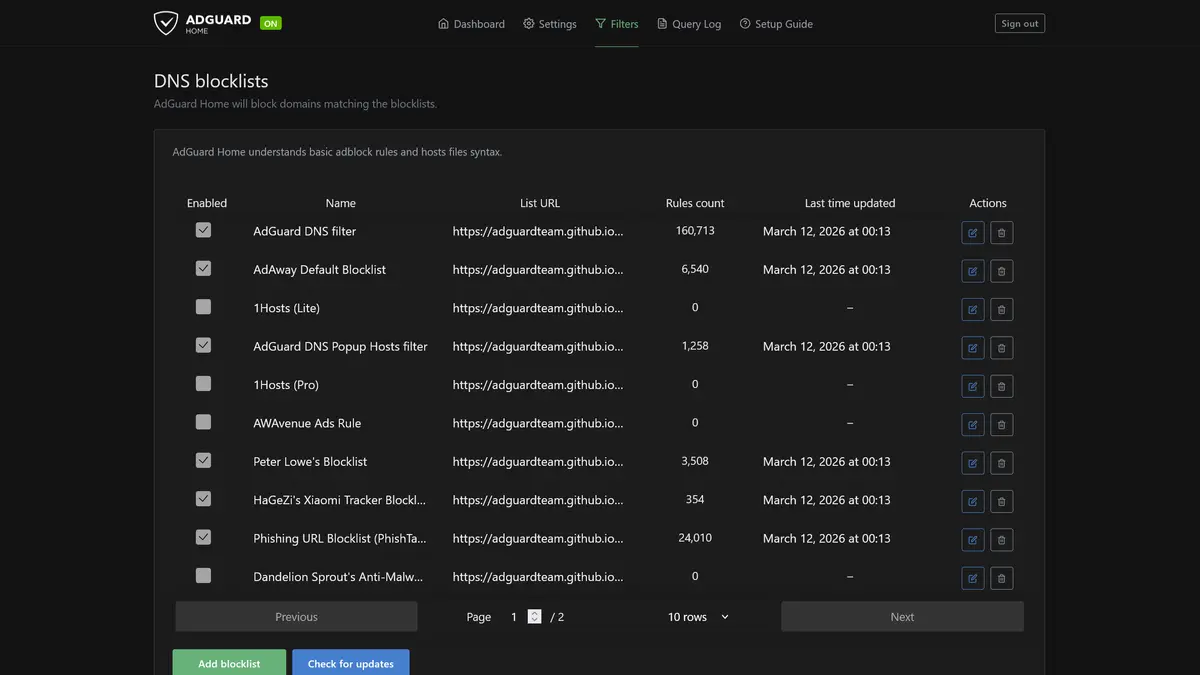
Recommended DNS Settings & Upstream DNS
To maximize speed and prevent ISP snooping, navigate to Settings → DNS Settings and configure encrypted upstream DNS providers (DoH / DoT):
Upstream DNS Servers (Copy & Paste)
https://dns.quad9.net/dns-query
https://cloudflare-dns.com/dns-query
https://dns.adguard-dns.com/dns-query
Optimal DNS Settings:
- Upstream mode: Parallel requests (queries all upstream servers concurrently and uses the fastest response).
- DNS cache size:
67108864(64 MB cache for instant sub-millisecond local responses). - Optimistic caching: Enable (serves cached responses while refreshing stale entries in background).
Can AdGuard Home Block YouTube Ads in 2026? (The Truth & Workarounds)
One of the most frequent questions homelabbers ask is: “Can I block YouTube ads network-wide using AdGuard Home?”
The short answer: No, not via DNS alone.
Why? Google serves YouTube video advertisements from the exact same content delivery networks (CDNs) and domain names (e.g., *.googlevideo.com) as the real video you are trying to watch. If AdGuard Home blocks that domain, the YouTube video will simply fail to buffer.
Effective Workarounds for YouTube Ads:
- Desktop / Mobile Browser: Use uBlock Origin or the Brave Browser, which perform deep cosmetic and request filtering inside the browser DOM.
- Android & Android TV: Use open-source third-party clients like SmartTube (for Android TV) or ReVanced (for Android smartphones).
- Parental Controls on AdGuard: While it cannot block YouTube ads, AdGuard Home can enforce YouTube SafeSearch or schedule full blocking of YouTube during study hours under Filters → Blocked Services.
Deploying AdGuard Home to All Devices (Router Level)
To protect your entire house without configuring every phone, tablet, and TV individually, set AdGuard Home as your home router’s primary DNS server.
- Log into your Wi-Fi router’s admin panel (typically
192.168.1.1or192.168.0.1). - Navigate to DHCP Settings / LAN Settings / DNS.
- Set Primary DNS Server to your AdGuard Home IP address (e.g.
192.168.1.150). - Set Secondary DNS Server to your backup DNS or leave blank.
- Save and reboot your router.
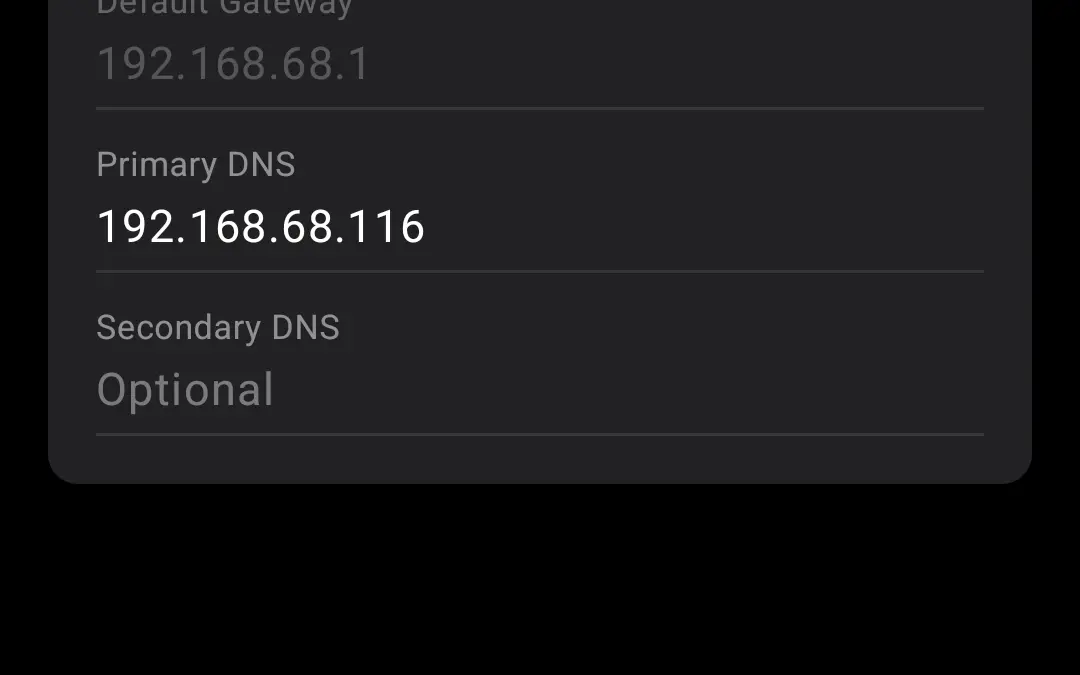
Once refreshed, every phone, laptop, and smart appliance connecting to your Wi-Fi will automatically query AdGuard Home, blocking ads and tracking seamlessly.
Parental Controls & Service Scheduling
AdGuard Home includes built-in service blocking under Filters → Blocked services.
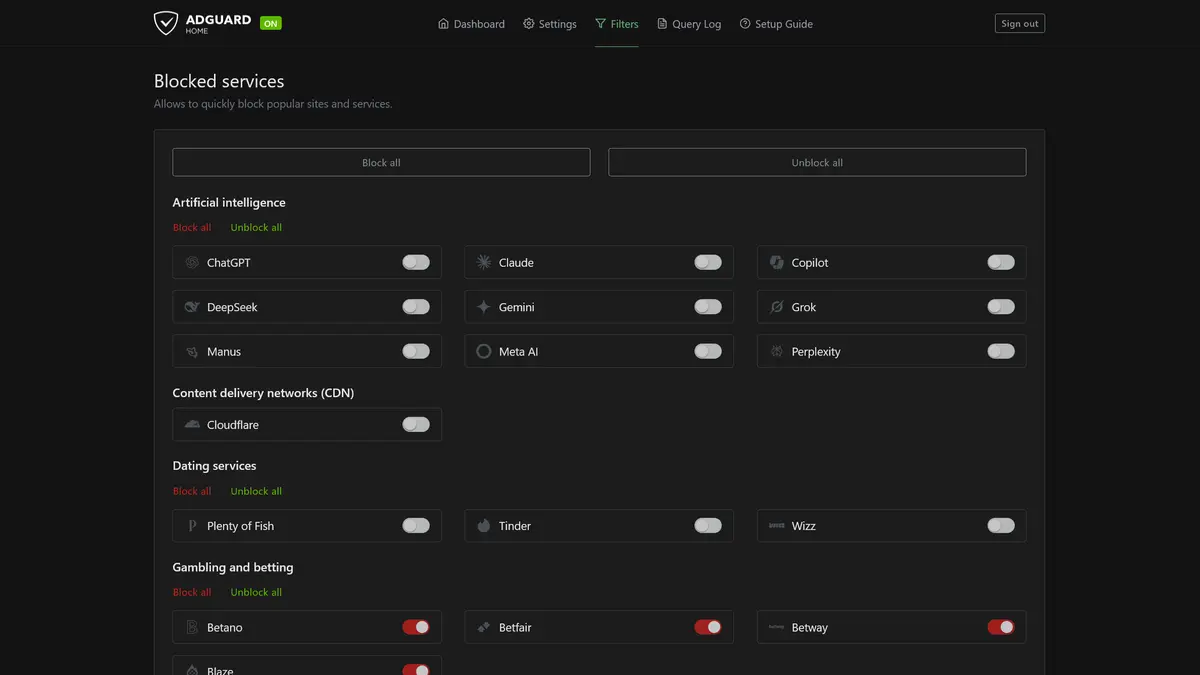
You can toggle one-click restrictions on specific platforms (TikTok, Roblox, Discord, adult domains) or schedule service downtime for bedtime:
💬 Frequently Asked Questions (FAQ)
What are the best AdGuard Home blocklists to use in 2026?
The ideal blocklist stack includes AdGuard DNS Filter (for general ads), OISD Basic/Big (near-zero false positives, family-friendly), Steven Black’s Unified Hosts (malware and adware), and Peter Lowe’s List.
Can AdGuard Home block YouTube ads?
No, DNS blockers cannot block YouTube video ads because the ads and the video streams originate from identical domain names (*.googlevideo.com). Use browser extensions like uBlock Origin or client apps like SmartTube on Android TV.
What are the best upstream DNS servers for AdGuard Home?
Use encrypted DNS-over-HTTPS (DoH) providers such as Quad9 (https://dns.quad9.net/dns-query) for malware filtering and Cloudflare (https://cloudflare-dns.com/dns-query) for speed.
Does AdGuard Home slow down internet connection speeds?
No. In fact, AdGuard Home accelerates browsing by caching frequent DNS queries locally and blocking heavy tracking scripts and media ads from ever downloading.